| Chapter 8. Running an eCos Test Case | ||
|---|---|---|
 | Part II. Programming With eCos |  |
Chapter 8. Running an eCos Test Case
In Section 7.2, “ Configuration Tool on Windows and Linux Quick Start” or Section 7.3, “ ecosconfig on Windows and Linux Quick Start” you created the eCos test cases as part of the build process. Now it is time to try and run one.
8.1. Using the Configuration Tool
Test executables that have been linked using the → (Shift-F7)operation against the current configuration can be executed by selecting → (Ctrl+F5).
This will bring up the dialog illustrated in Figure 8.1, “Run tests”. For a detailed explanation details of how to configure the graphical Configuration Tool to run tests, please refer to Chapter 18, Execution.
Figure 8.1. Run tests
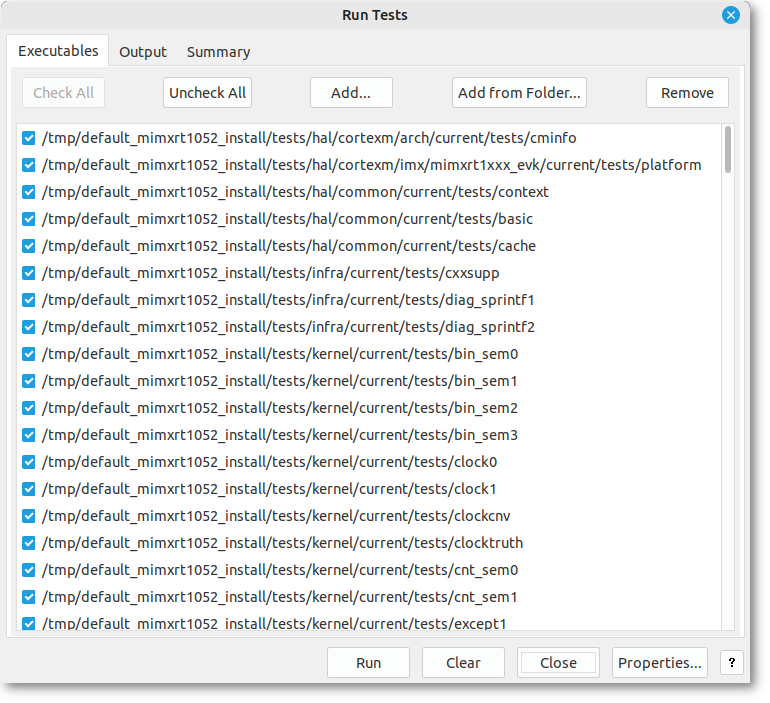
Select the Executables tab, press the
Uncheck All button and then find and check
just one test, for example bin_sem0
Now press the Properties button to set up communications with the target. This will bring up a properties dialog shown in Figure 8.2, “Properties dialog box”.
Generally you do not need to adjust the Download or Runtime timeouts, but the Remote timeout may need to be set if communication between gdb and the remote target is likely to suffer from delays. For example, if the network connection to the target is over a satellite internet connection, or if you are connecting through a pipe to OpenOCD on a slow Windows host where the startup of OpenOCD can be slow, you will need to set the remote timeout to a value higher than the default of 2. Other configuration details may be found in Section 18.1.3, “Debug Connection”.
If you have connected the target board via a serial cable, check the
Serial radio button, and select the serial port
and baud rate for the board. If the target is connected via the
network or Hardware debugger with gdb server
(such as the Ronetix PEED, BDI2000 or OpenOCD in server mode) select
the TCP/IP button and enter the IP address or DNS
name that the board, hardware debugger or host has been given,
and the port number (usually 9000 for RedBoot and the PEEDI, 2001 for
the BDI2000). If you are using a hardware debugger locally and accessing
it through a pipe, select Pipe and enter the
command to invoke the hardware debugger in pipe mode in the
Pipe Command field. Do not include the pipe
(“|”) symbol.
Figure 8.2. Properties dialog box
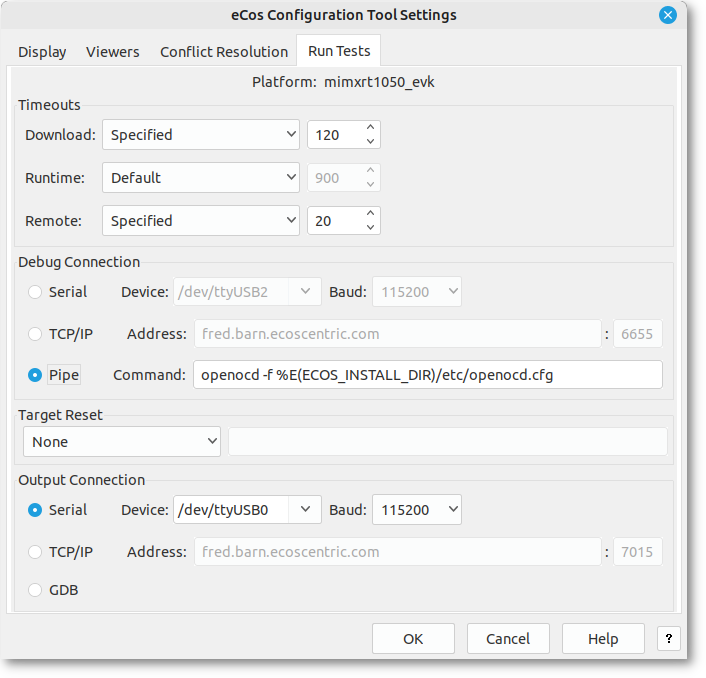
If output of the test executable is only accessible through an external source instead of the default through GDB, these must also be configured. See Section 18.1.5, “Output Connection” for further details.
Finally, if you wish to run multiple tests automatically, in Target Reset you may specify how the target hardware may be reset before running each test such that GDB can download and execute a test on the target hardware in an automated fashion. For example, if manual or physical intervention is required, such as a power cycle or pressing the reset button, set this field to Manual. You will then be asked by the eCos Configuration Tool to reset the board and clear a dialog Window by pressing OK once the target hardware has been reset and is ready to run a test. If no reset is required, for example when the board is connected to a hardware debugger that resets the board according to its configuration when a GDB client connects to it, set this field to None. If the target hardware can be reset through the local host execution of a command or script, set this field to Command and enter the command, complete with arguments, in the field alongside. Do not include the pipe (“|”) symbol. If the command is not on the path, the full path to the command must be entered. The reset command must also terminate with a zero exit code once the target hardware has been determined to successfully reset, otherwise all following test executions are cancelled as the hardware is determined as having failed.
Click OK on this dialog and go back to the Run Tests dialog. Press the Run button and the selected test will be downloaded and run. The Output tab will show you how this is progressing. If it seems to stop for a long time, check that the target board is correctly connected, and that eCos has been correctly configured -- especially the start-up type.
When the program runs you should see a couple of line similar to this appear:
PASS:<Binary Semaphore 0 OK>
EXIT:<done>
This indicates that the test has run successfully.
See Chapter 18, Execution for further details.
8.2. Using the command line
Start a command shell (such as the Command shell in Windows) with the environment variables set as described in the toolchain documentation. Change to the directory in which you set up your build tree, and invoke GDB on the test program.
To run the bin_sem0 test (which will test the kernel for the correct creation and destruction of binary semaphores) type:
$TARGET-gdb -nw install/tests/kernel/<version>/tests/bin_sem0
You should see output similar to the following in the command window:
GNU gdb THIS-GDB-VERSION
Copyright (C) 2014 Free Software Foundation, Inc.
License GPLv3+: GNU GPL version 3 or later <http://gnu.org/licenses/gpl.html>
This is free software: you are free to change and redistribute it.
There is NO WARRANTY, to the extent permitted by law.  Type "show copying"
and "show warranty" for details.
This GDB was configured as "--host=THIS-HOST --target=THIS-TARGET".
Type "show configuration" for configuration details.
For bug reporting instructions, please see:
<http://bugzilla.ecoscentric.com/>.
Find the GDB manual and other documentation resources online at:
<http://www.gnu.org/software/gdb/documentation/>.
For help, type "help".
Type "apropos word" to search for commands related to "word".
If you are trying to run a synthetic target test on Linux, skip the following connection and download steps. Otherwise, connect to the target by typing:
(gdb) set remotebaud 38400
(gdb) target remote /dev/ttyS0
on Linux or
(gdb) set remotebaud 38400
(gdb) target remote com1
on Windows. To use a simulator in either host O/S use
(gdb) target sim
To use a temote host or target:
(gdb) target remote 192.168.2.3:9000
or to use a pipe command to OpenOCD:
(gdb) target remote | openocd -f <path_to_target_config_file> -c "gdb_port pipe"
Check the documentation for the target board for the actual baud rate to use when connecting to real targets.
You will see output similar to the following:
Remote debugging using ... 0x0000d50c in ?? () at<BASE_DIR>/kernel/<version>/src/common/kapi.cxx:345 Current language: auto; currently c++ (gdb)
Or if you are using the simulator:
Connected to the simulator.
(gdb)
Now download the program to the target with
(gdb) load
You should see output similar to the following on your screen:
Loading section .text, size 0x4b04 lma 0x108000
Loading section .rodata, size 0x738 lma 0x10cb08
Loading section .data, size 0x1c0 lma 0x10d240
Start address 0x108000, load size 21500
Transfer rate: 24571 bits/sec, 311 bytes/write.
(gdb)
Now set a breakpoint to trap the target once the test has completed execution:
(gdb) break cyg_test_exit
(gdb)
If you are running the test on the target through a hardware debugger you should additionally run the following command
(gdb) set hwdebug on
This will set a flag within gdb telling it to extract diagnostics
messages from a pre-determined location on reaching a pre-defined
hardware breakpoint, display them on the GDB console,
and resume execution automatically. This is useful in the absense of
other external mechanisms for the target hardware to emit debug messages
(e.g. through a serial port) but does also normally require enabling
the eCos options
CYGFUN_HAL_DIAG_VIA_GDB_FILEIO and
CYGFUN_HAL_GDB_FILEIO within the
eCos configuration. The set hwdebug
on is harmless if executed when the above
eCos options are not set.
You are now ready to run your program. If you type:
(gdb) continue
you will see output similar to the following:
Continuing.
PASS:<Binary Semaphore 0 OK>
EXIT:<done>
![[Note]](pix/note.png) | Note |
|---|---|
If you are using a simulator or the synthetic target rather than real hardware, you must use the GDB command “run” rather than “continue” to start your program. |
You can terminate your GDB session through
Control+C if the target is still running and the
breakpoint cyg_test_exit was not reached, otherwise it
will sit in the “idle” thread and use up CPU time. This is
not a problem with real targets, but may have undesirable effects in
simulated or synthetic targets. Type quit once back
at the gdb prompt and you are done.
8.3. Testing Filters
While most test cases today run solely in the target environment, some packages may require external testing infrastructure and/or feedback from the external environment to do complete testing.
The serial package is an example of this. The network package also contains some tests that require programs to be run on a host. See the network Tests and Demonstrations section in the network documentation in the eCos Reference Guide. Here we will concentrate on the serial tests since these are applicable to more targets.
Since the serial line is also used for communication with GDB, a filter is inserted in the communication pathway between GDB and the serial device which is connected to the hardware target. The filter forwards all communication between the two, but also listens for special commands embedded in the data stream from the target.
When such a command is seen, the filter stops forwarding data to GDB from the target and enters a special mode. In this mode the test case running on the target is able to control the filter, commanding it to run various tests. While these tests run, GDB is isolated from the target.
As the test completes (or if the filter detects a target crash) the communication path between GDB and the hardware target is re-established, allowing GDB to resume control.
In theory, it is possible to extend the filter to provide a generic framework for other target-external testing components, thus decoupling the testing infrastructure from the (possibly limited) communication means provided by the target (serial, JTAG, Ethernet, etc).
Another advantage is that the host tools do not need to know about the various testing environments required by the eCos packages, since all contact with the target continues to happen via GDB.
| |  | |
| Chapter 7. Configuring and Building eCos from Source |  | Chapter 9. Building and Running Sample Applications |
| 2024-03-18 | Open Publication License |