| Chapter 11. Getting Started | ||
|---|---|---|
 | Part III. The eCos Configuration Tool |  |
Chapter 11. Getting Started
Table of Contents
11.1. Introduction
The eCos Configuration Tool is used to tailor eCos at source level, prior to compilation or assembly, and provides a configuration file and a set of files used to build user applications. The sources and other files used for building a configuration are provided in a component repository, which is loaded when the eCos Configuration Tool is invoked. The component repository includes a set of files defining the structure of relationships between the Configuration Tool and other components, and is written in a Component Definition Language (CDL). For a description of the concepts underlying component configuration, see Chapter 22, CDL Concepts.
![[Note]](pix/note.png) | Note |
|---|---|
This documentation relates to version 4.0 of the eCosPro eCos Host Tools and above. If you are using an earlier version of the eCosPro eCos Host Tools, the behaviour and screenshots documented may be slightly different from what you could encounter and certain features may not be available to you. |
11.2. Environment Variables
The eCos and eCosPro host tools make use of shell environment variables to specify either locations of directory structures and files, or settings in use by the tools. These variables are:
- ECOS_REPOSITORY
The
ECOS_REPOSITORYenvironment variable must point to thepackagessubdirectory of the eCosPro installation (e.g./opt/ecospro/ecos-4.0.1/packageson Linux orC:\eCosPro\ecos-4.0.1\packageson Windows).ECOS_REPOSITORYmay also point to multiple eCos component repositories, in which case it contains a path to each repository'spackagessubdirectory seperated by thePATHseperator of the host O/S. (i.e. a colon on Linux and a semi-colon on Windows).- ECOS_INSTALL_DIR
The
ECOS_INSTALL_DIRenvironment variable is set to theinstallsubdirectory of a prepared eCos build tree created by the eCos Configuration Tool. It will be set within any shell created using → as well prior to any build or test execution by the eCos Configuration Tool.For example, this variable is referenced by the default pipe command of the eCos Configuration Tool using the
%E(ECOS_INSTALL_DIR)macro to locate the default target-specific openocd script placed atinstall/etc/openocd.cfg- OPENOCD_SCRIPTS
The
OPENOCD_SCRIPTSenvironment variable points to the shared directory location where the common scripts for openocd may be found. These scripts are referenced by the target-specific openocd configuration files and may vary if different versions of the eCosPro host tools (which includes openocd), or a different source of openocd, have been installed. Normally for a single openocd installation this will be/opt/ecospro/ecoshosttools/share/openocd/scriptson Linux orC:\eCosPro\ecoshosttools\share\openocd\scriptson Windows.- ECOS_TARGET
This environment variable specifies the primary name of the target of the eCos Configuration Tool's configuration when the shell was created. It may be used within automated build scripts as seen fit by the developer.
- ECOSPRO_PROFILE
This environment variable specifies the name of the currently active profile when the shell was created. It may be used within automated build scripts as seen fit by the developer.
- PATH
This system environment variable specifies the list of directories, in order, to be searched for executables that may be executed directly from the command line without specifying the full path. If the user has specified either Build Tools or Host Tools paths, these are prepended by the eCos Configuration Tool to the PATH along with the GNU Toolchain and Host Tools executables directories as specified by the eCosPro Profile whenever a build is invoked, test executed or shell opened.
| Note |
|---|---|
These environment variables are persistent in a shell created by the eCos Configuration Tool and will represent the active profile and last saved configuration at the time the shell was spawned. If the profile is changed, or the name/location of the configuration file is changed, within the eCos Configuration Tool, these values will not be updated within the shell. |
The chapter Environment Variables in the eCosPro Developer's Kit - Installation and Getting Started Guide provide an example of typical use.
11.3. Invoking the eCos Configuration Tool
11.3.1. On Linux
Invoke the configuration tool using one of the following methods:
Directly from a command line by specifying the full path to it from the command line: The exact location is dependant on where it was installed and by whom. For example:
> /opt/ecos/ecoshosttools/bin/configtool       # Global installation
> $HOME/ecospro/ecoshosttools/bin/configtool   # Local installation
Add the executable install directory for the eCos Configuration Tool to your PATH, and run configtool from your command line. For example:
> export PATH=/opt/ecos/ecoshosttools/bin:$PATH
> configtool
Invoking it from the Desktop as illustrated in Figure 11.1, “ Linux Menu ”.
Figure 11.1. Linux Menu
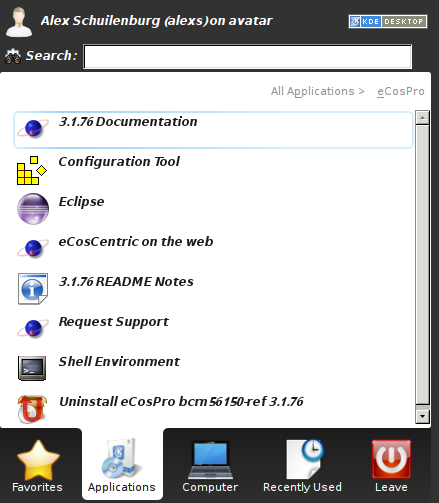
The exact representation is dependent on your Linux desktop environment. The eCosPro installer uses the FreeDesktop.org's xdg-desktop-menu command, if available, to install a desktop menu item for the eCos configuration tool.
Run the application from the Run Application... dialog.
Invoking it from your File Manager
You may run configtool with zero, one or two arguments. You can specify the eCos repository location, and/or an eCos save file (extension .ecc) on the command line. The ordering of these two arguments is not significant. For example:
configtool /opt/ecos/ecos<version>/packages myfile.eccOnce started, the Configuration Tool will be displayed (see Section 11.3.3, “Configuration Tool”).
11.3.2. On Windows
There are four ways in which to invoke the eCos Configuration Tool:
from the desktop explorer or program set up at installation time. By default on Windows 7 and below this is: → → → . On Windows 10 this is:
 → → → .
navigate to the executable directory where ConfigTool.exe was installed using Windows Explorer and double-click on the command.
type (at a command prompt or in the Start menu‚s Run item):
<foldername>\ConfigTool.exe where<foldername>is the full path of the directory in which you installed the eCos Configuration Tool.open an eCos Command shell (by default on Windows 7: → → → ) and run the command ConfigTool.
Figure 11.2. Windows 10 Menu
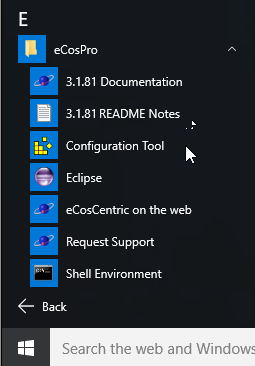
The Windows 10 Menu items added on installation are illustrated in Figure 11.2, “ Windows 10 Menu ”.
Once started, the Configuration Tool will be displayed (see Section 11.3.3, “Configuration Tool”).
11.3.3. Configuration Tool
If multiple eCosPro installations exist you will normally be prompted to select the profile of an installation before the main configuration window is displayed. See Figure 11.4, “Profile selection dialog” in Section 11.4.1, “Profiles”.
Figure 11.3. Configuration Tool
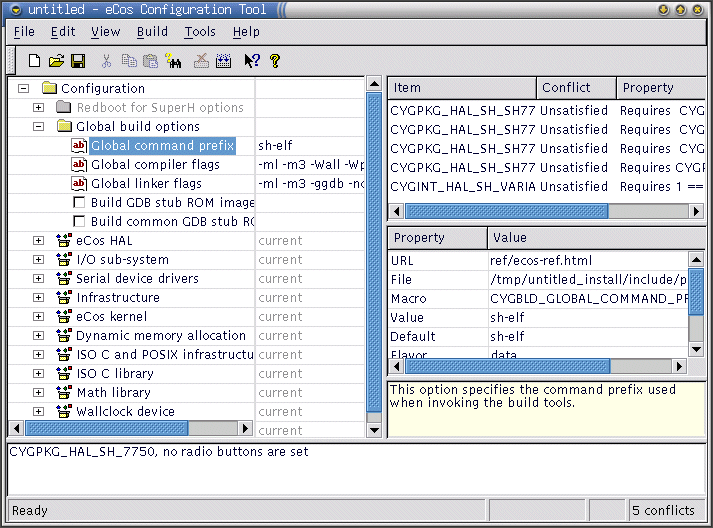
Once started, the Configuration Tool main window is displayed as illustrated in Figure 11.3, “ Configuration Tool ”.
You may run configtool with zero, one or two arguments. You can specify the eCos repository location, and/or an eCos save file (extension .ecc) on the command line. The ordering of these two arguments is not significant. For example:
configtool "c:\eCosPro\ecos-3.1.79\packages" myfile.ecc
If a profile name matching the profile used to create the eCos exists on your installation, it will automatically be selected and the user will not be prompted to select a profile as described in Section 11.4.1, “Profiles”.
If you invoke the configuration tool from the command line with --help, you will see this output:
Usage: configtool [-ceEhpPsvV] [-p <str>] [input file 1] [input file 2]
  -c, --compile-help 	compile online help only
  -e, --edit-only    	edit save file only
  -E, --eclipse      	Eclipse mode to disable certain options
  -h, --help         	displays help on the command line parameters
  -p, --profile=<str>	specifies the eCosPro profile to use
  -P, --edit-profile 	create, edit or delete profiles only
  -s, --shell        	Open shell with selected profile
  -v, --version      	print version
  -V, --Verbose      	be verbose
This summarizes valid parameters and switches. Switches are shown with both short form and long form.
--compile-help compiles help contents files from the HTML documentation files that the tool finds in the eCos repository, and exits.
--edit-only runs the Configuration Tool in a mode that suppresses creation of a build tree, in case you only want to create and edit save files.
--eclipse runs the Configuration Tool in a mode that is used by the eCosCentric eCosPro Eclipse plug-in. This mode restricts the configuration tool to a specified eCos Configuration file and profile by disabling certain menu options, such as → (Ctrl+O), → , → , → (Alt+P) and the modification of the Build (Toolchain) Tools, Host Tools and Paths. This allows eCosPro Eclipse plugin users to operate only within the corresponding Eclipse project.
--help shows valid options and parameters, as above.
--profile=<profile> selects the profile
<profile> on startup, bypassing the profile
dialog selection. The
legacy profile
may be provided as either env:ECOS_REPOSITORY
or as the escaped environment variable name (i.e. so it is not expanded
to the environment variable value from the command line).
--edit-profile opens the profile dialog to allow editing, adding or deletion of profiles without invoking the configuration tool. This feature is particlarly useful when you only have one profile, which is also the active profile, and wish to edit it.
--shell opens the profile dialog to allow selection of a profile and opens a development shell (command line shell) for the selected profile. This is equivalent to opening the configuration tool, selecting the menu options Tools>Shell and exiting the configuration tool.
--version shows version and build date information, and exits.
--Verbose be verbose on the command line when running.
11.4. Profiles and the Component Repository
When you invoke the eCos Configuration Tool, it accesses the Component Repository, a read-only location of configuration information. For an explanation of “Component Repository” see Chapter 22, CDL Concepts.
11.4.1. Profiles
eCosPro 3.1 introduced support for repository profiles (profiles) which make it easier to have more than one component repository (i.e. eCos repository or eCosPro installation) present at the same time. Each eCosPro installation defines its own system profile which declares what it is, where its component repository is located, what toolchain it requires and its default hardware target and template. Version 4.0 of the eCosPro Configuration Tool introduced user profiles to allow users to define their own “Component Repository” and toolchain set.
| Note |
|---|---|
Editing of system profiles and the active profile is not permitted. |
The Configuration Tool looks in two places for profile definitions, a system-wide file and a per-user file. Any definitions present in the per-user file override those in the system-wide file.
Table 11.1. Profile definition file locations
| Platform | System-wide | Per-user |
|---|---|---|
| Windows |
%ALLUSERSPROFILE%\ecospro.ini
|
%LOCALAPPDATA%\ecospro.ini or
%APPDATA%\ecospro.ini
|
| Linux |
/etc/ecospro.conf
|
$HOME/.ecospro.conf
|
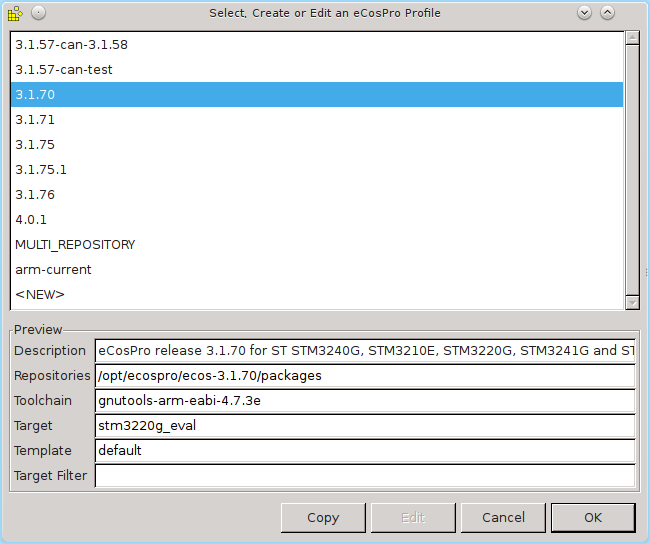
At startup, the Configuration Tool reads the profile definitions and checks them for validity. If only one valid profile is found, or a profile is specified on startup using the --profile=<profile> command line option, or an eCosPro configuration file is specified on startup which contains information regarding the profile against which that configuration was created, that profile is selected unconditionally. If none of the above conditions are satisfied, you will be prompted to select or create a profile to use.
To select a profile, highlight the descriptive name of the profile, the
details of which will then appear in the Preview
area, and then select OK.
Once selected, the descriptive name of the currently active profile is displayed in the status bar at the bottom right of the Configuration Tool window.
Figure 11.4. Profile selection dialog
| Note |
|---|---|
You cannot Edit the current active profile. |
11.4.2. Legacy Profile and Compatibility with eCosPro v2.0.x and 3.0.x
Older installations of eCosPro created ecosenv.sh
and/or ecosenv-<version>.sh files which
set the ECOS_REPOSITORY environment variable for you.
In order to co-exist with such installations, this version of the
Configuration Tool also examines the value of
ECOS_REPOSITORY when it starts up: if it is set and
not equal to any repository
in the available profiles, a legacy profile is created.
The legacy profile is a system profile that cannot be edited and
will appear in the profile selection dialog as either
%ECOS_REPOSITORY% for Windows Hosts or
${ECOS_REPOSITORY} for Linux Hosts.
Alternatively, if an eCos repository is passed on the command line
to the configuration tool, either as a directory or the value of
an environment variable, the legacy profile as described
above will be added using the repository provided as the eCos
repository. In this case the environment variable
ECOS_REPOSITORY is ignored when creating the legacy
profile.
| Note |
|---|---|
When using this backwards compatibility mode, you may need
to set up the path to the appropriate toolchain for your target hardware
using the
→ →
menu item. Alternatively, you can ensure the toolchain is on the
|
11.4.3. Migrating configurations to a new repository profile
It is possible to migrate a configuration from one profile to another which provides the same set of packages (for example, when upgrading to another release of eCosPro which targets the same hardware platform).
To do this, first open the configuration in its current profile, then use the → (Alt+P) menu item to select a different profile. You will be prompted to save the configuration, if necessary, before selecting the new profile; the Configuration Tool then attempts to migrate the configuration to the new profile.
The migration process will result in a number of warnings from CDL, mostly to the effect that the previously-selected versions of eCos packages were not found and that the available versions were used instead. There may also be conflicts arising, which you will be prompted to resolve in the usual way.
If the configuration could not be automatically migrated, the action is aborted and you are warned that that save file was “invalid” for that profile. This normally indicates that a package loaded by the existing configuration was not present in the new repository; details will appear in the error output.
You can check the location of the current repository, the current save file path, the current hardware template, package deplate and any packages added or removed from your configuration by selecting → (Ctrl+I). A summary will be displayed along with any licensing information (this feature was added in eCosPro 4.0).
11.4.4. Profile Dialog
The creation and editing of user profiles is done through the Profile Dialog selection window (see Figure 11.4, “Profile selection dialog”). This dialog may be reached either on startup of the configuration tool when prompted to select a profile, or through the profile selection menu option → (Alt+P).
11.4.4.1. Creating or editing user profiles
To create a new profile, within the profile selection dialog select the
<NEW> profile from the list of profiles and
press EDIT. Similarly, to edit or copy an existing
profile, select the profile from the list and select either
EDIT or COPY respectively.
| Note |
|---|---|
|
Figure 11.5. Profile editing dialog
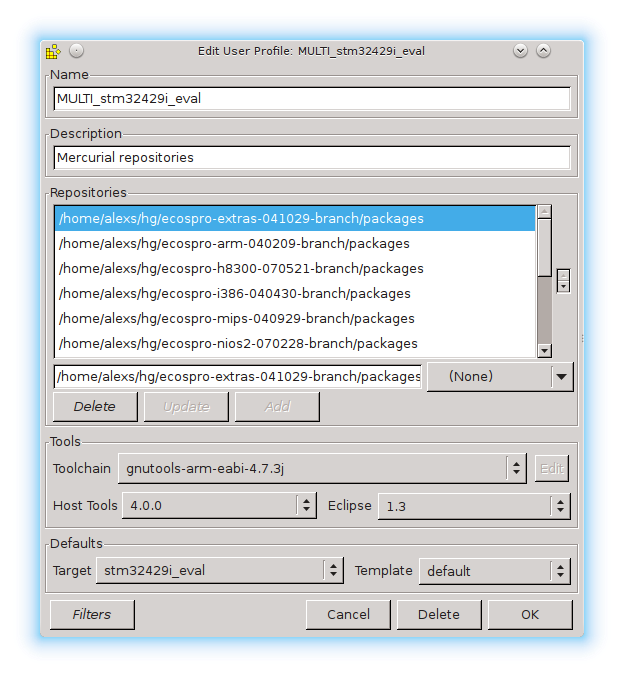
This will open the new dialog window illustrated above. The fields are as follows:
-
Name The descriptive name that appears at the bottom right of the Configuration Tool and in the Profile selection dialog.
-
Description A textual description of the profile to appear in the preview field of the Profile selection dialog.
-
Repositories The list of directories containing eCos repositories, in the order in which they are to be used. For normal eCosPro installations this will contain a single directory. Multiple directories may be specified from which packages can be selected when creating an eCos configuration. If the same package, as determined by the macro name, appears in multiple directories, the package within the highest directory repository of the list will be used.
The order of the repositories may be altered by selecting a directory from the list and using the up/down arrows to the right of the list to move the directory up or down in the list order.
The order of the repositories may be altered by selecting a directory from the list and using the up/down arrows to the right of the list to move the directory up or down in the list order.
-
Adding a repository A new repository may be added by entering the path to the
packagesdirectory containing theecos.dbfile in the input field below the list of repositories, or by choosing the directory using the selector to the right of this input field.The
ADDbutton will become enabled once a valid directory has been entered and must be pressed to add the respository directory to the list.-
Deleting a repository To delete a directory from the list of repositories, select the directory in the list and press the
DELETEbutton.-
Changing a repository To alter a directory in the list of repositories, select the directory in the list, alter the name of the directory in the field above or select the new
packagesdirectory and press theUPDATEbutton. This button will only become enabled when the direcory field contains a valid path to a directory containing anecos.dbfile.-
Toolchain eCosPro profiles include the GNU toolchain to be used to build an eCos configuration. GNU toolchains (compiler, debugger and utilities) are provided with eCosPro Developers Kits which may be periodically updated. User profiles allow the developer to select a newer or different GNU toolchain, including a GNU toolchain from a different source, for use when building an eCos configuration.
The Toolchain drop-down list within the Tools section of the dialog allows the user to specify the descriptive name of the toolchain for the profile. The path to the executables (gcc, g++, and family) for this toolchain is added to the front of the user's search path to these executables are used when the eCos configuration (and optional tests) is built.
The
%PATH%toolchain on Windows or${PATH}on Linux allow the user to use the first GNU toolchain executables found in the user's search path.A new toolchain may be specified by selecting the
<NEW>followed by pressing the<EDIT>button which will cause a new dialog to be opened that allows the user to specify a new toolchain. Similarly, existing user-specified toolchains may be edited by selecting the toolchain from the drop-down list and pressing the<EDIT>button. See Section 11.4.4.2, “Creating or editing user-defined toolchains” for more details.-
Host Tools Included in eCosPro profiles are the eCosCentric provided Host Tools and Eclipse are to be used within a Profile. The Host Tools drop-down list within the Tools section of the dialog allows the user to specify the descriptive name of the Host Tools installation for the profile. The path to the executables (openocd, ecosconfig, mk_romfs instdump etc. and, on Windows, additional tools such as bash, make, patch) is added to the front of the user's search path when the eCos configuration (and optional tests) is built, by Eclipse when building the eCos library or application, and when a new shell is opened by the configuration tool.
The
%PATH%for Host Tools on Windows or${PATH}on Linux will not assign any Host Tools to the Profile and will user's the seach path.Note There is no means within the eCos Configuration Tool to add a new Host Tool definition to the drop down.
-
Eclipse Similar to Host Tools, the Eclipse drop-down list within the Tools section of the dialog allows the user to specify the descriptive name of Eclipse installation for the profile.
The
%PATH%for Eclipse on Windows or${PATH}on Linux will not assign any Eclipse installation to the Profile.Note This item is not currently used by anything but may be used in future by the eCos Configuration Tool.
-
Target and Template defaults When creating a new eCos configuration from the menu using → (Ctrl+N) a default
<target><template>-
Filters eCosPro 4.0 introduced CDL attributes to eCos packages and targets as an aid for developers to search for or view packages and targets with specific attributes.
One use of this feature is to restrict the number of targets listed in the drop-down target selection list. This list contained the target names of all eCosPro and public eCos targets provided within eCosPro Developers Kit Releases and can be very long. To reduce this list a profile may restrict the targets displayed to only the targets with specific attributes. For example, for targets tested and supported within the 4.0.1 eCosPro Developers Kit Release, targets displayed may be restricted to those with the attribute
release_v4.0.1. Similarly, the attributetarget_ecospromay be used to limit targets displayed to those for which commercial support from eCosCentric is available.Currently only one attribute may be selected for filtering. Filtering may also be disabled by unchecking
“Filter targets according to attributes”within the Display Tab of the Settings dialog → (Ctrl+T).
11.4.4.2. Creating or editing user-defined toolchains
The Toolchain Edit Dialog illustrated in Figure 11.6, “Toolchain editing dialog” provides a means by which user-defined toolchains can be added, edited or deleted from within eCosPro Profiles.
Figure 11.6. Toolchain editing dialog
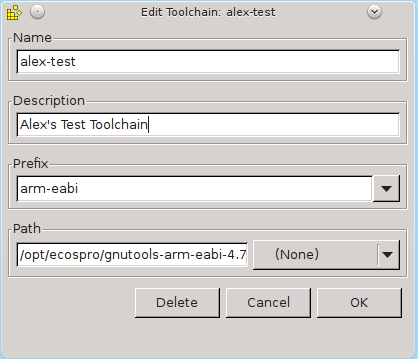
Descriptions of the individual fields:
-
Name The descriptive name used in the drop-down list of toolchains within the edit profile dialog.
-
Description A textual description of the toolchain.
-
Description A textual description of the toolchain.
-
Prefix The GNU Toolchain prefix associated with this toolchain. The editor will look for executables of the form
<prefix>-gcc to validate the toolchain path, and in the event a toolchain is deleted or uninstalled will use this prefix to match prospective alternative toolchains against a target when setting up the paths for a profile.-
Path An input field containing the name of the directory containing the GNU Toolchain executables
<prefix>-gcc,<prefix>-g++,<prefix>-ld,<prefix>-gdb and so on.The button to the right of the input field will allow you to navigate to and select the directory through the host's native interface rather than typing the directory name in the input field.
The Delete button will delete an existing
user-defined toolchain, Cancel will undo any
changes made and OK will accept the changes.
11.5. eCos Configuration Tool Documents
11.5.1. Configuration Save File
eCos configuration settings and other information (such as disabled conflicts) that are set using the eCos Configuration Tool are saved to a file between sessions. By default, when the eCos Configuration Tool is first invoked, it reads and displays information from the Component Registry and displays the information in an untitled blank document. You can perform the following operations on a document:
11.5.1.1. Save the currently active document
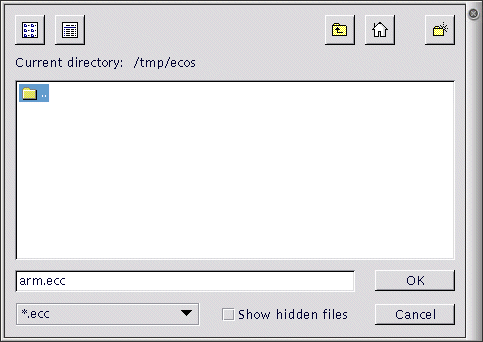
Use the → (Ctrl+S). menu item or click the Save Document icon on the toolbar; if the current document is unnamed, you will be prompted to supply a name for the configuration save file.
Figure 11.7. Save As dialog box
| Note |
|---|---|
If there are no conflicts within the eCos configuration and the Check for conflicts: Before saving configuration option within the Conflict Resolution tab is selected (see Section 15.4.1, “Resolving conflicts”), the configuration tool will automatically regenerate the build tree. |
11.5.1.2. Open an existing document
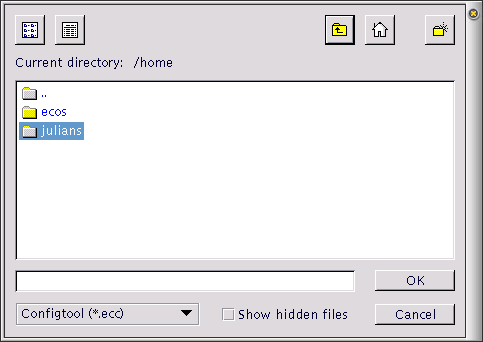
Select → (Ctrl+O) or click the Open Document icon on the toolbar. You will be prompted to supply a name for the configuration save file.
Figure 11.8. Open dialog box
11.5.1.3. Open a document you have used recently
Click its name at the bottom of the File menu.
Documents may also be opened by:
double-clicking a Configuration Save File in the desktop explorer (Windows only);
invoking the eCos Configuration Tool with the name of a Configuration File as command-line argument, or by creating a shortcut to the eCos Configuration Tool with such an argument (under Windows or a suitable Linux desktop environment).
11.5.1.4. Create a new blank document based on the Component Registry or Profile and default target and template
Select → (Ctrl+N) or click the New Document icon on the toolbar.
11.5.1.5. Create a new blank document based on the Component Registry or Profile and a different target or template
Select → (Alt+N).
11.5.1.6. Save to a different file name
Select → . You will be prompted to supply a new name for the configuration save file.
![[Caution]](pix/caution.png) | Caution |
|---|---|
If there are no conflicts within the eCos configuration and the Check for conflicts: Before saving configuration option within the Conflict Resolution tab is selected (see Section 15.4.1, “Resolving conflicts”, the configuration tool will automatically regenerate the build tree. |
11.5.2. Build and Install Trees
The location of the build and install trees are derived from the eCos save file name as illustrated in the following example:
Save file name = “c:\My eCos\config1.ecc”
Install tree folder = “c:\My eCos\config1_install”
Build tree folder = “c:\My eCos\config1_build”
These names are automatically generated from the name of the save file.
See also Chapter 22, CDL Concepts.
| |  | |
| Part III. The eCos Configuration Tool |  | Chapter 12. Getting Help |
| 2024-03-18 | Open Publication License |