| Chapter 17. Building | ||
|---|---|---|
 | Part III. The eCos Configuration Tool |  |
Chapter 17. Building
Table of Contents
When you have configured eCos, you may build the configuration.
On the Build menu, click:
Library (or click the Build Library icon on the toolbar) – this causes the eCos configuration to be built. The result of a successful build will be (among other things) a library against which user code can be linked
Tests – this causes the eCos configuration to be built, and additionally builds the relevant test cases linked against the eCos library
Clean – this removes all intermediate files, thus causing a subsequent build/library or build/tests operation to cause recompilation of all relevant files.
Stop – this causes a currently executing build (any of the above steps) to be interrupted
Generate Build Tree – this causes a build tree to be generated for the existing eCos configuration. The option is greyed out if there are any conflicts. This will only overwrite makefiles and headers that must be changed as a result of a change in the eCos configuration since the previous build tree was last generated.
![[Note]](pix/note.png) | Note |
|---|---|
Any changes made to automatically generated makefiles and headers will be lost whenever a new build tree is generated. These files must therefore never be edited. |
When either → (F7) or → (Shift+F7) are selected, before the build is permitted to start:
if there are any conflicts within your eCos configuration, you will be prompted to resolve these
if you have not already saved your eCos configuration, you will be prompted to do so
a build tree will be generated automatically. This will only overwrite makefiles and headers that must be changed as a result of a change in the eCos configuration since the previous build tree was last generated.
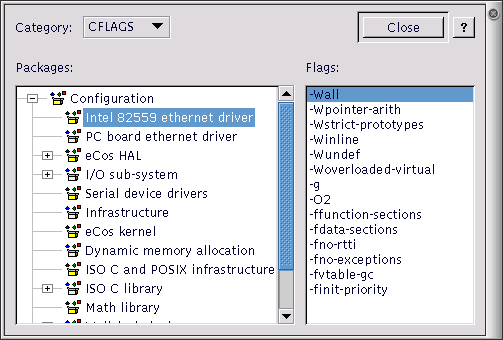
Build options may be displayed by using the → menuitem. This displays a dialog box containing a drop-list control and two windows. The drop-list control allows you to select the type of build option to be displayed (for example “LDFLAGS” are the options applied at link-time. The left-hand window is a tree view of the packages loaded in the current configuration. The right-hand window is a list of the build options that will be used for the currently selected package.
Note that this dialog box currently affords only read-only access to the build options. In order to change build options you must edit the relevant string configuration item.
A single level of inheritance is supported: each package‚s build options are combined with the global options (these are to be found in the “Global build options” folder in the configuration view).
Figure 17.1. Build Options
17.1. Selecting Build Tools
Normally the profile or
installation process will supply the information required for the
eCos
Configuration Tool
to locate the build tools (compiler, linker, etc.) necessary
to perform a build. However if this information is not registered,
or it is necessary to override or specify the location manually (for example,
to use a user-defined toolchain), select
→ → to set user-defined build tools. This location will take
precedence over the build tools defined by the
Profile or PATH environment. This
setting will also remain persistent on subsequent invocations of the
eCos
Configuration
Tool. The following dialog box will be displayed:
Figure 17.2. Build tools
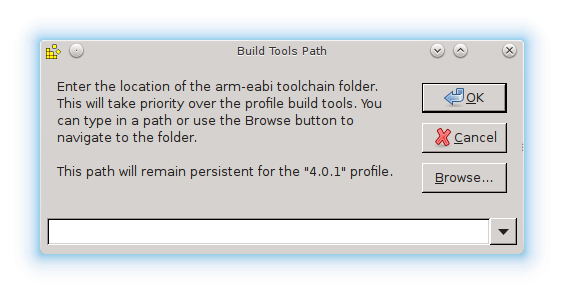
This dialog box allows you to locate the folder containing the build tools or toolchain.
| Note |
|---|---|
User-defined build tools set in this way will override the the build tool setting provided by the Profile. Furthermore this override will be saved persistently for that profile. However if you switch to a different profile, then the appropriate build tool settings for that new profile will be used instead (or if user-defined build tools had previously been set for that new profile, then those will be used). |
17.2. Selecting Host Tools
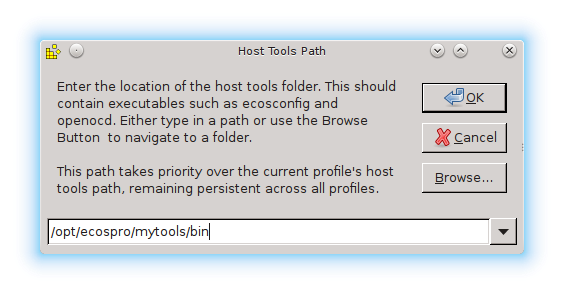
Normally the installation process will supply the information required for the eCos Configuration Tool to locate the host tools (cat, ls, etc.) necessary to perform a build. However if this information is not registered, or it is necessary to specify the location manually (for example, when a new toolchain installation has been made), select → → . The following dialog box will be displayed:
Figure 17.3. Host tools
| Note |
|---|---|
If the host tools are set here, they will take precedence over the host tools specified by the profile or PATH environment. This setting will also remain persistent across all profiles and on subsequent invocations of the Configuration Tool. |
| |  | |
| Chapter 16. Searching |  | Chapter 18. Execution |
| 2024-03-18 | Open Publication License |